 Ozmium Docs
Install as an App
Pin Ozmium to your home screen on iPhone or Android, add it to the Base App, or open it as a Farcaster mini-app. No app store required.
Ozmium is a progressive web app. There is nothing in an app store, nothing to download, and no review process between a change being shipped and you having it. Adding it to your device takes a few taps and produces an icon that behaves like any other app: its own window, no browser chrome, and its own place on your home screen.
Four hosts are supported, and all of them run the same site.
iPhone and iPad
Safari is required for this. Chrome and Firefox on iOS can open Ozmium perfectly well, but only Safari can write to the home screen.
- Open ozmium.org in Safari.
- Tap the Share button in the toolbar, the square with an arrow pointing up.
- Scroll down the share sheet and tap Add to Home Screen.
- Confirm the name, leave Open as Web App enabled, and tap Add.
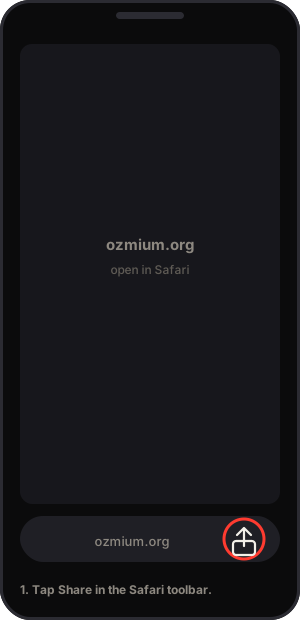
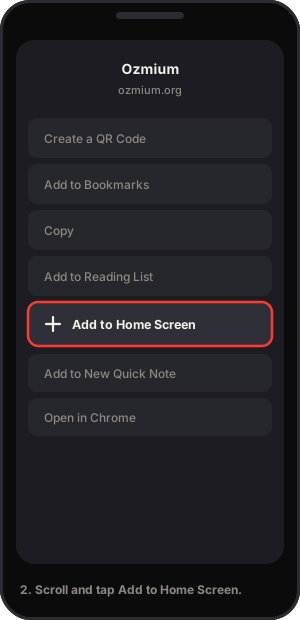
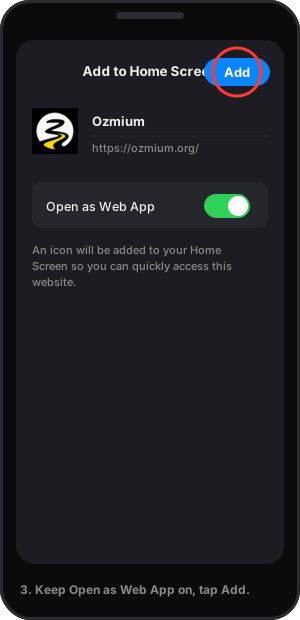
The icon lands on your home screen. Opening it launches Ozmium full-screen without the address bar, and it keeps its own session, so a connected wallet stays connected between launches.
If you do not see Add to Home Screen, you are in a browser other than Safari, or the option is below the visible area of the sheet. Scroll further.
Android
Chrome usually offers this on its own. If it has not:
- Open ozmium.org in Chrome.
- Tap the three-dot menu in the top right.
- Tap Add to Home screen, or Install app if Chrome offers that instead.
- Confirm.
Samsung Internet, Edge, and Firefox on Android all support the same thing under similar wording.
Desktop
Chrome and Edge both install web apps on Windows, macOS, and Linux. Look for the install icon in the address bar, a small monitor with a downward arrow, or open the browser menu and choose Install Ozmium or Apps, Install this site as an app.
The result is a standalone window with its own taskbar or dock entry.
The Base App
Inside the Base App, Ozmium opens as a mini-app with the host wallet already connected, so there is no separate connection step.
- Open the Base App and go to its browser.
- Enter ozmium.org in the address field.
- Once Ozmium loads, open the three-dot menu in the browser bar and choose Pin.
Base publishes no end-user guide for its browser or for pinning apps, so the steps above are described from the app itself rather than cited. docs.base.org is developer documentation, and its mini-apps section covers how a mini-app is built rather than how you pin one. If the Base App changes its controls, trust the app over this page.
Farcaster
Ozmium is also a Farcaster mini-app. Opened from a cast or from the mini-app directory, the wallet your Farcaster client already holds is the wallet Ozmium uses.
- Open your Farcaster client.
- Find Ozmium through the mini-apps directory, or open any cast linking to it.
- Add it to your own mini-apps list using the client's add control.
miniapps.farcaster.xyz is likewise developer documentation. It describes how clients handle mini-apps, not how you add one, and the add control differs between Farcaster clients.
What Installing Changes
| Installed | In a Browser Tab | |
|---|---|---|
| Launch | Home Screen Icon, Own Window | Address Bar and Tabs |
| Session | Persists between Launches | Persists, Subject to Browser Cleanup |
| Updates | Automatic on Next Launch | Automatic on Reload |
| Custody | Unchanged. Your Wallet, Your Keys | Unchanged |
Installing changes presentation and nothing else. There is no separate build, no additional permission, and no extra access to your device. It is the same site, in its own window.